Why add video to a podcast
Some audiences prefer to watch a conversation, and video platforms let people discover shows they would never find in a podcast app. Video also gives you material for short clips, which are often how new listeners first meet a show. Adding video is a choice, not a requirement: audio-only still works well for listeners who commute or exercise.
-
 Plan Choose your layout and setup
-
 Record Video plus clean audio
-
 Edit Cut, switch and mix
-
 Package Titles, captions, chapters
-
 Publish Episode plus clips
Option 1: Record video from now on
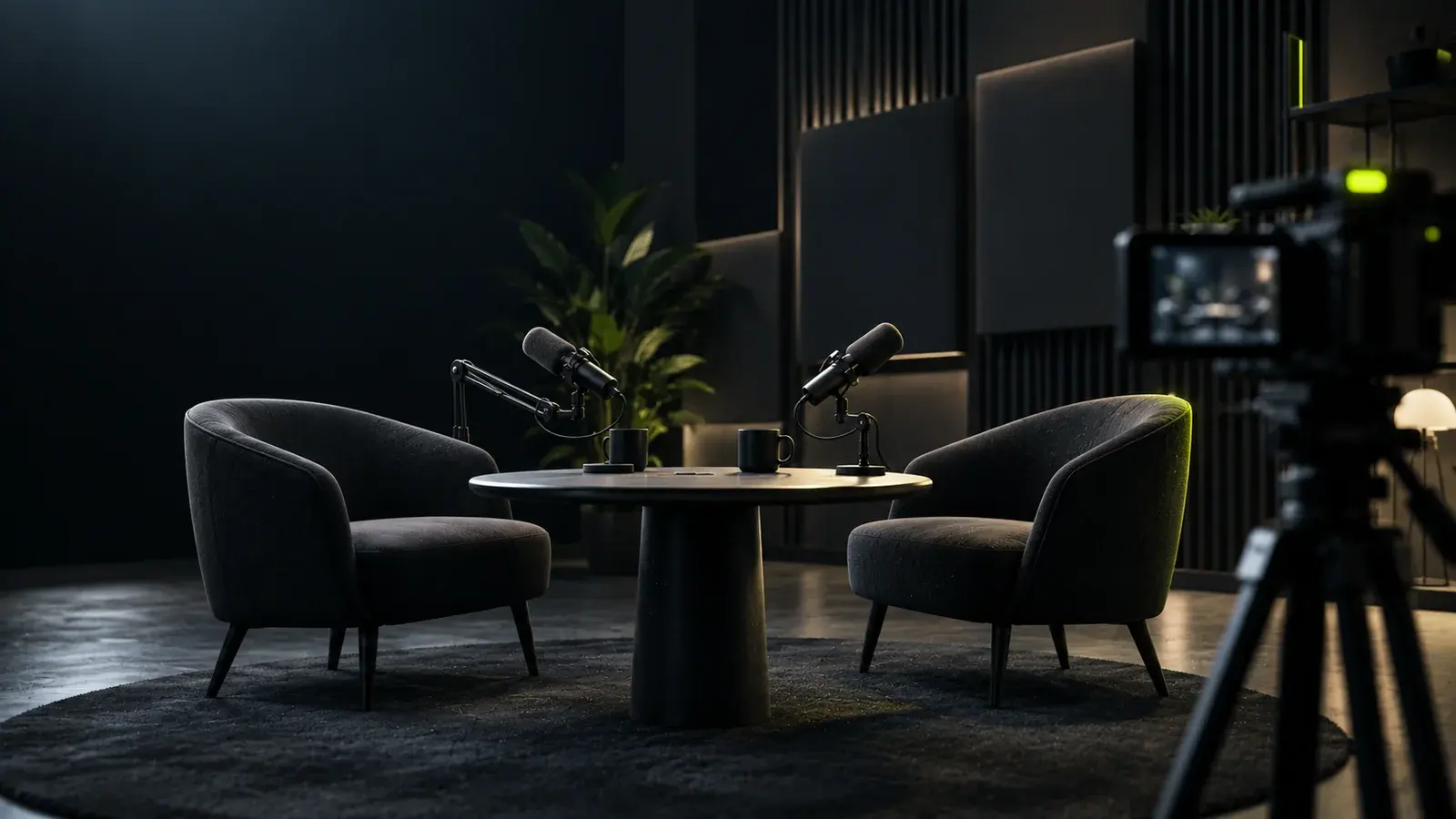
This gives the best results, because the picture and the sound are captured together. A few basics cover most of what matters.
- Audio first. Viewers forgive a plain picture more easily than bad sound. Keep your microphones and record each voice on its own track if you can.
- Camera at eye level. A slightly raised camera at eye height looks natural. Avoid angles looking up at the face.
- Light the face. A window or soft lamp in front of you works better than light behind you.
- A tidy background. Simple and slightly out of focus is better than busy.
- Remote guests. Use a tool that records each person locally, so a weak connection does not ruin the file.
Option 2: Add visuals to existing audio
For past episodes with no video, you can still publish on video platforms. Typical choices are a waveform with captions, a still image with the show art, or a mix of both with chapter titles. Be realistic about the result: many viewers expect faces, so audio with visuals tends to work as an archive and a discovery route, not as a replacement for real video. Keep these versions simple and put your effort into new episodes.
Choose a camera layout
A consistent layout makes a show recognisable. Three simple options cover most conversations:
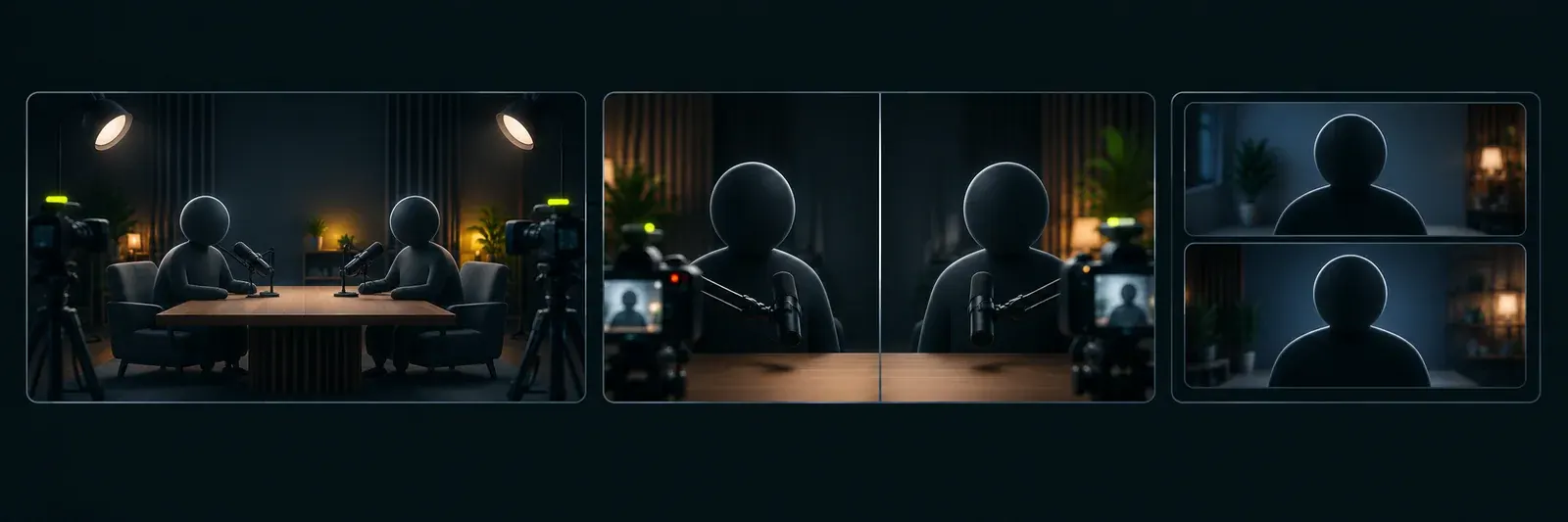
Wide shot
Both people in one frame. Simplest to record, and fine when the room and lighting are good.
Speaker switch
Cut to whoever is talking. Needs one camera or angle per person, and feels more active.
Split screen
Both faces on screen at once. Good for quick back-and-forth, and for remote guests.
Add graphics that help
- Lower thirds with the name and role of each speaker the first time they appear.
- Chapter titles when the topic changes, which also help people navigate a long episode.
- Topic cards for a key number, quote or term.
- A consistent look: the same fonts, colours and caption style in every episode.
Graphics should explain something. If a graphic does not help the viewer follow the conversation, leave it out.
Package the episode
- Write a clear title that says who the episode is for or what it covers.
- Add chapters with timestamps in the description.
- Upload captions so the episode is accessible and searchable.
- Choose a thumbnail with a face and a short line of text.
Publish the episode, then the clips
After the full episode goes live, cut three to five short clips for the days that follow. A video podcast gives you plenty of moments to choose from. For how to pick them, see how to turn a podcast episode into short clips, and for how to open each one, see how to write a hook for a short video.
When to hand it to an editor
Multi-camera switching, audio cleanup, graphics and clips add up quickly. If editing each episode is taking more of your week than the recording, an editor can take that over. Preparing your files and a brief makes that handoff much smoother.